Vibe Code 2 Apps in 10 Minutes with Google's Nano Banana Pro
Google recently dropped Nano Banana Pro, its best image generation model yet.
The capabilities are shocking. It can generate clear, legible text (a major struggle for older models), create complex infographics, upscale images to crisp 4K, and the holy grail of AI image gen maintain character consistency.
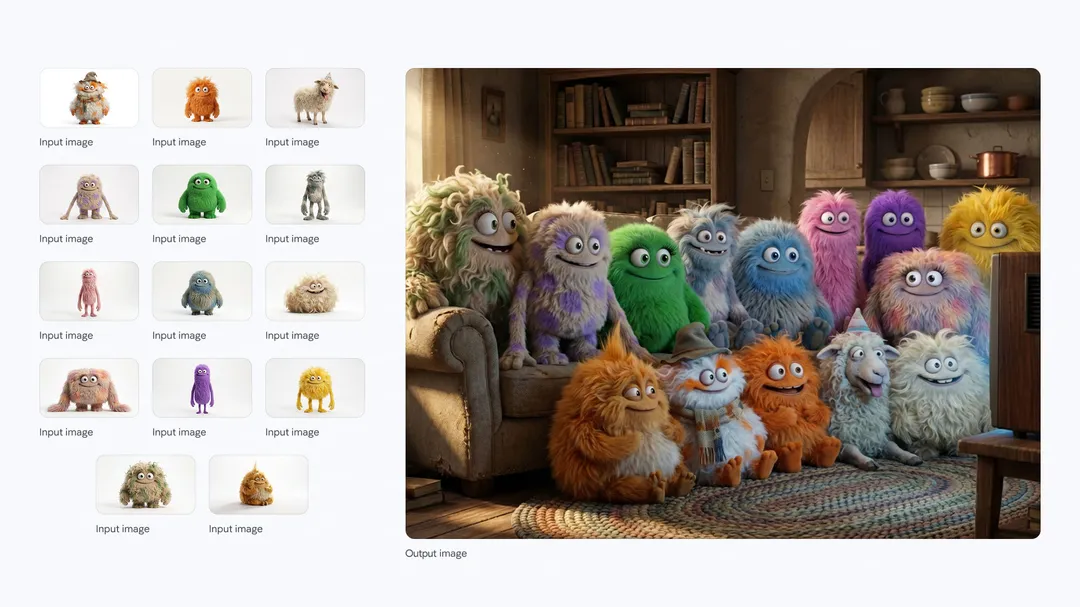
But looking at static images is one thing. Building software with it is another.
We vibe coded two complete, functional applications in less than 10 minutes using this new model. The quality of the results blew us away.
Watch video walkthrough here:
<iframe width="560" height="315" src="https://www.youtube.com/embed/yHjzNoS4JDM" title="I Vibe Coded an App in 8 minutes! (Nano Banana PRO)" frameborder="0" allowfullscreen></iframe>In this guide, we’ll walk you through exactly how we built a Professional Headshot Generator and a Consistent Comic Book Creator step-by-step, including the specific prompt "hacks" you need to make it work.
1. The Setup: Google AI Studio
First, head over to ai studio.google.com.
If this is your first time, you’ll need to configure a few things:
- Create a Project: Standard Google Cloud setup.
- Get an API Key: You will need to link a billing card. These models are paid, so you must set up billing to generate the key.
- The Playground: Before building, we recommend testing the raw model in the "Playground" tab.
We tested it by asking for an "inspiring comic book strip for a 5-year-old."
The Result: "Leo's Big Adventure."
The model didn't just generate images; it wrote the script, handled the pacing, and kept Leo looking like Leo across different panels. It even rendered the text perfectly inside the speech bubbles.
Now, let's build the actual apps.
2. App #1: The Headshot Generator
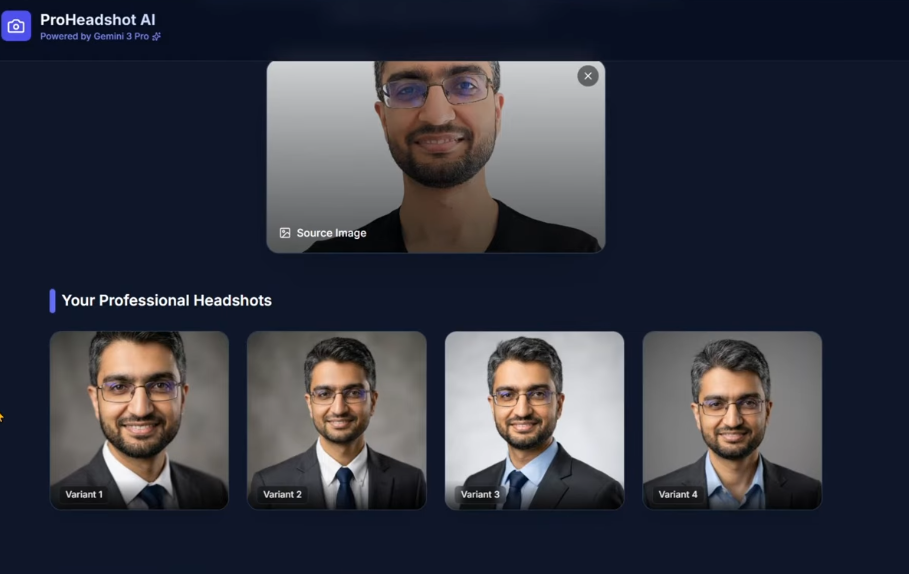
The Goal: Upload a casual selfie and generate 4 professional LinkedIn-ready headshots.
To do this, navigate to the Build section of AI Studio. Here is where the magic happens; you describe the idea, and it builds the UI and logic.
The Problem
The model is so new that the LLM building the app (Gemini) doesn't actually know "Nano Banana Pro" exists yet. If you just ask for it, it will default to an older model.
The Solution (Our Workflow)
- The Base Prompt: "I'd like to use a headshot generator. I want to upload my photo and generate professional LinkedIn headshots. Four of them, please."
- The Documentation Hack: Go to the Gemini 3 developer guide, copy the text, and paste it into the context window. This teaches the builder about the new model.
- Specify the Model ID: You must explicitly tell it: "Use the Gemini three pro image preview model."
The Result
We uploaded a casual photo (t-shirt and messy hair). The app returned four options.
- The Verdict: While one had slightly too much white hair, two of them were scarily accurate. They passed the "smell test." We could upload these to LinkedIn today, and most people wouldn't know the difference.
3. App #2: The Comic Book Generator
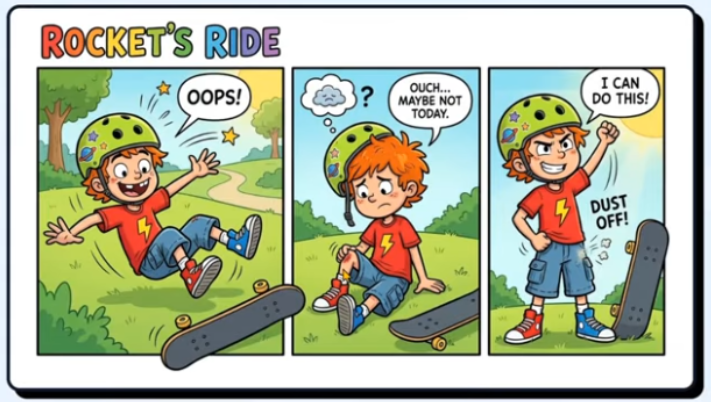
The Goal: A clean, fun website that generates inspirational comic strips for 7-year-old boys (themes: resilience, healthy eating, positive habits).
The Complexity
We didn't just want one image. We asked for three comic strips, meaning three rectangles containing a total of nine tiles.
- Constraint 1: Characters must be consistent across all 9 tiles.
- Constraint 2: The story must flow logically.
The Prompt Strategy
Just like the headshot app, we pasted the documentation and specified the "Gemini three pro image preview model."
We also added a specific instruction for formatting: "Add a few emojis here and there."
The Result
The app generated a story about "Rocket," a kid learning to master a "super spin."
- Text Quality: Flawless. No gibberish. "Falling down is just part of learning."
- Consistency: Rocket is wearing the same jeans, the same shirt with the Flash logo, and has the same face in almost every panel.
- The Errors: If you look closely (playing "spot the difference"), the shoe color changes slightly, and in one frame he’s missing a tooth, but in the next, he isn't.
Despite those tiny artifacts, this is a usable educational story generated in seconds.
How to Deploy
Once your app is working in the preview:
- Click the Deploy button in the top right.
- Select your Google Cloud project.
- Hit Deploy App.
That’s it. It’s live.
Conclusion
We are entering an era where you don't need to know how to code to build complex image-generation pipelines. You just need to know how to vibe code, describe what you want, provide the right context (documentation), and let the model handle the heavy lifting.
If you want to learn how to build AI-powered apps like this yourself, or if you want our help implementing this for your business, contact us.
Want to discuss this?
Book a call→