Make AI Test Its Own Work using Playwright MCP Server
Make AI Test Its Own Work using Playwright MCP Server
"Claude says the feature is done. I test it. It's always broken."
If you are building with AI, you know this frustration. You ask for a feature, the LLM writes the code, claims it works, and when you open the browser—it’s a mess.
At AZKY, we focus on catching these bugs before they reach production. The secret? We don't just ask AI to write the code; we make the AI test its own work.
In this guide, I’m going to show you how to use the Playwright MCP (Model Context Protocol) Server to give Claude the ability to open a browser, click buttons, take screenshots, and verify that your code actually works.
Watch the video tutorial here:
<iframe width="560" height="315" src="https://www.youtube.com/embed/7vzrhS9OHu0" title="Make AI test it's own code using Playwright MCP (5 mins)" frameborder="0" allowfullscreen></iframe>What is Playwright MCP?
For those who don't know, Playwright is an end-to-end testing framework for modern web apps. It allows code to programmatically open browsers (Chromium, Firefox, WebKit), click around, and verify that user paths are functional.
Usually, developers write these tests manually. But in the world of AI coding, we use the Playwright MCP Server. This connects your AI agent (like Claude via Cursor or Windsurf) directly to a browser instance.
Instead of you manually checking if a button works, the AI can now:
- Open a real browser instance.
- Navigate to your local host.
- Interact with elements (click, type, scroll).
- Verify the output.
The "Missing" Installation Step
To get this working, you need to configure the MCP server in your IDE. However, the official documentation misses a critical step that trips a lot of people up, especially if you are using Ubuntu or WSL (Windows Subsystem for Linux) like I do..
The MCP server assumes you have the browser binaries installed, but it doesn't always install them for you.
You must run these commands in your terminal first:
Bash
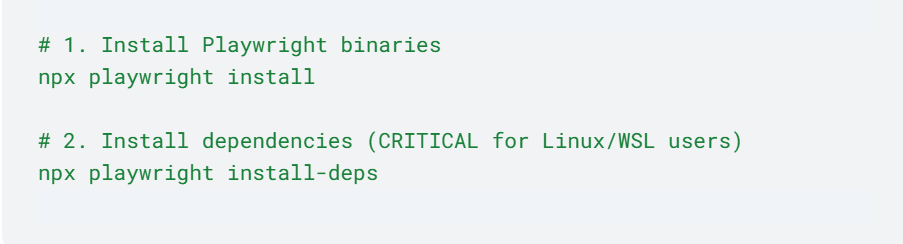
If you skip the install-deps step on Linux/WSL, the MCP server will fail because your system will lack the necessary libraries to actually launch the browser.
Configuring the Server
Once the dependencies are installed, you need to add the Playwright server to your MCP configuration file (usually mcp.json or within your IDE's settings).
Here is the configuration I use. Note that I’ve added specific arguments to force it to use Chromium.
JSON
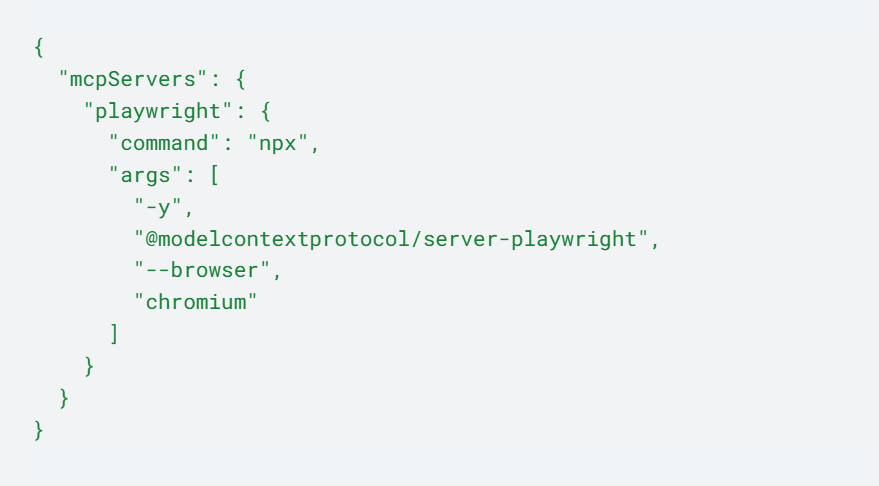
- Command: Uses npx to run the server.
- Args: -y auto-accepts prompts, and --browser chromium specifies the browser engine.
Once you save this and restart your MCP connection, you should see playwright connected in your MCP tools list.
Example Workflow
Once connected, the workflow is incredibly powerful. Here is the exact process I used in the video to test a responsiveness issue on a tutorial repository.
1. Spin up your local server
Run your development server (e.g., npm run dev) so the site is live on localhost.
2. Prompt the AI
Open your AI chat (Claude) and give it a specific instruction:
"Please navigate to localhost:3000 and test responsiveness using Playwright."
3. Watch the Magic
Claude doesn't just "guess" It actually:
- Opens a Chromium instance (you might see a flickering window in the background—that's Claude working!).
- Resizes the browser window to mobile, tablet, and desktop dimensions.
- Takes screenshots of each state.
- Reads the screenshots using its vision capabilities to verify the layout.
In my demo, Claude resized the window, captured the state, and reported back: "It seems to be responsive and there are no issues here."
Advanced Debugging (Console Logs)
Visual testing is only half the battle. The other half is ensuring there are no hidden errors in the code.
Because the Playwright MCP server hooks into the browser instance, Claude has access to the Chrome Console Logs.
You can simply ask:
"What does the Chrome console log show?"
Claude uses the playwright_get_console_logs (or similar) tool to pull the actual warnings and errors from the browser session.This gives the AI a complete picture:
- Server Logs: From your terminal.
- Browser Logs: From Playwright.
- Visuals: From screenshots.
This allows the AI to debug issues that might not be visible on the screen but are breaking the app in the background.
Conclusion
This workflow shifts the AI from being just a Code Writer to being a Code Tester.
Instead of manually clicking through your app every time you make a change, you can build a feature and immediately ask Claude: "Click the button, check the console logs, and tell me if it works."
This is how you 10x your productivity.
Most agencies just ask the AI to write code and hope for the best. At AZKY, we implement rigorous self-testing workflows like the one above to ensure every feature is battle-tested before you ever see it.
Stop fixing bugs in production. Book a call with us and let’s build something robust.
Want to discuss this?
Book a call→